
NEW DSP EMPLOYEE ORIENTATION INSTRUCTIONS
New Direct Support Professional (DSP) employee orientation consists of 3 parts after installing your app and logging in. The total expected time to complete this orientation, including downloading the application and clocking out, is approximately 2-2.5 hours but should take no more than 3.5 hours in total.
Before you begin, make sure you have the following ready:
Your Adaley username (provided to you via email)
Your e-verify link in your email from dhs.gov
Acceptable identification documents for e-verify I-9 (passport, social security card, driver’s license)
3 hours reserved to complete this orientation in its entirety.
To begin orientation, please make sure you have downloaded the Aaniie (SmartCARE) app. The first part of this orientation provides information on how to download and log into the application.
Introduction: Download and log into SmartCare (estimated 5-15 minutes)
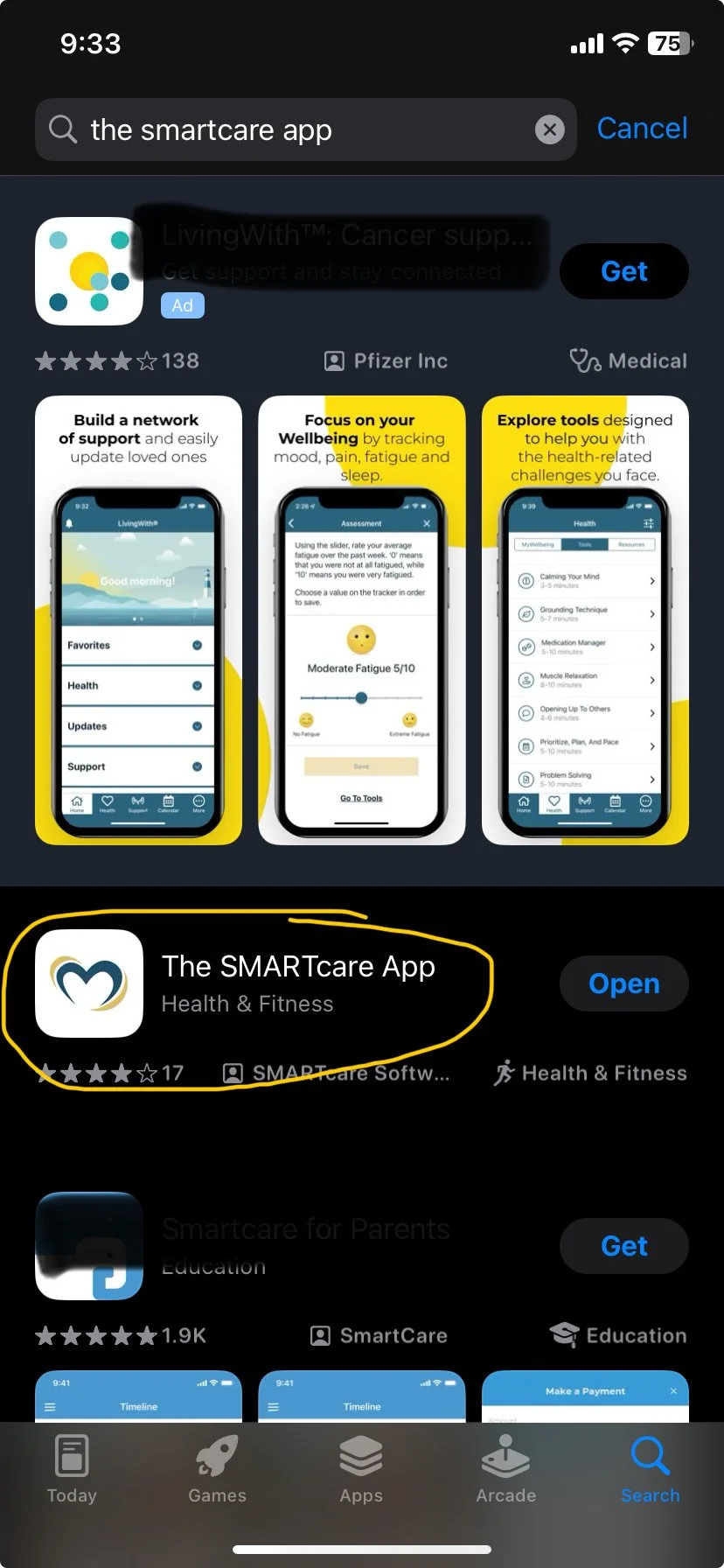
Step 1: Download the SmartCARE app on your phone. If using iOS (Apple device), you would go to your App Store and search "The Smartcare App". If using Android, you would do this same search in the Google Play Store. The app will look like this:
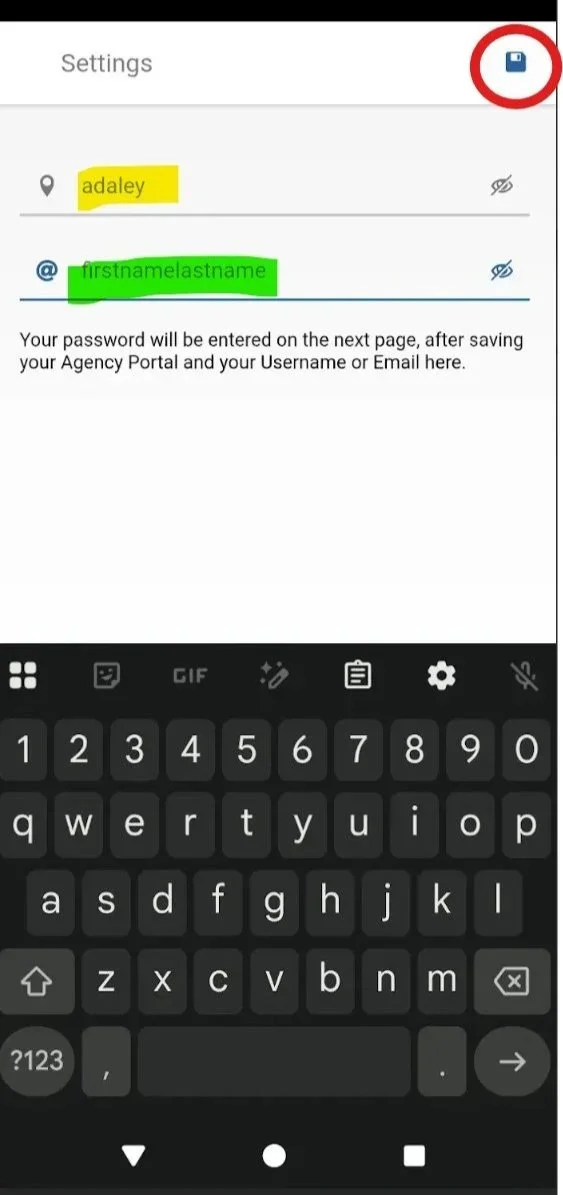
Step 2: In the app, you will need to enter the name of the agency, “adaley”, which is the first part of the our webportal with Aaniie (smartcare) as shown below.

Step 3: Enter the name of the agency, “adaley” in your phone app in the first form field at the top (yellow) and then enter your username in the second form field below it (green) and click on the save icon at the top right (in the red circle).
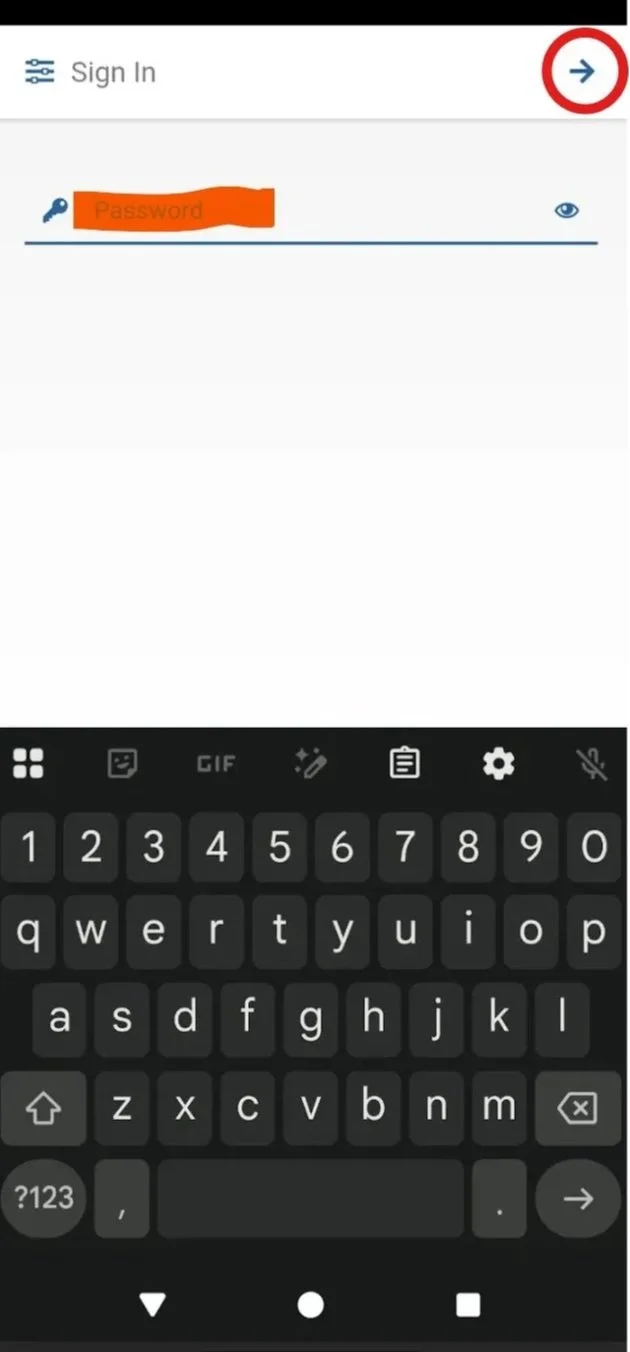
Step 4: Enter your password (orange) and click the arrow at the top right
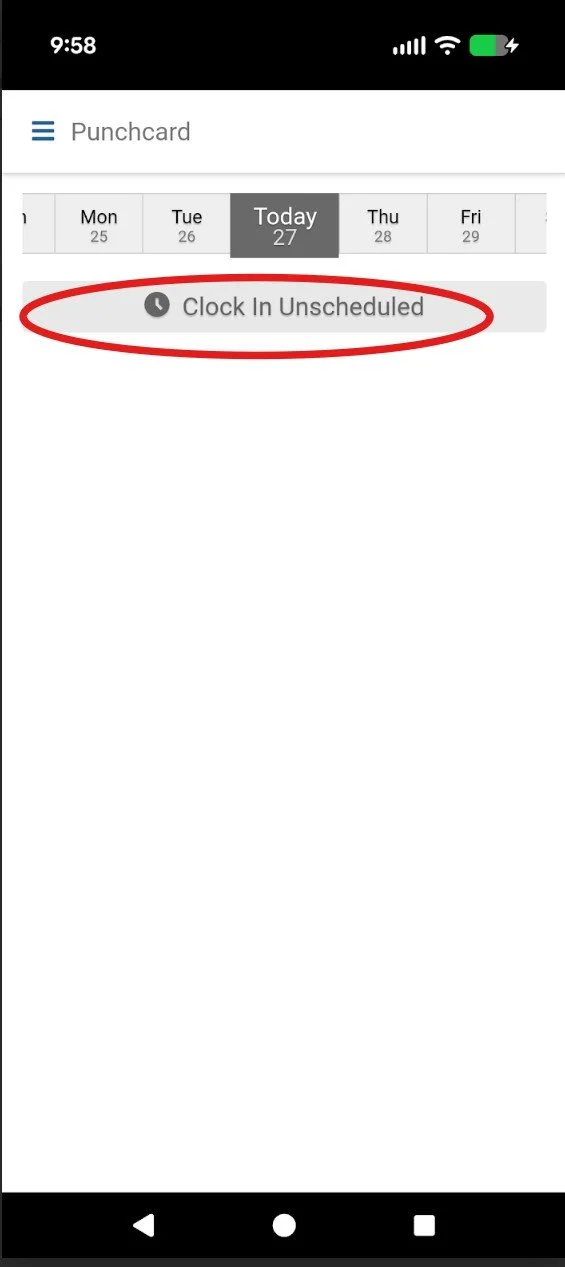
Step 5: You will see your punchcard. If you have received your e-verify email and when you are ready to start your orientation tasks, please click “Clock In Unscheduled” (red circle)
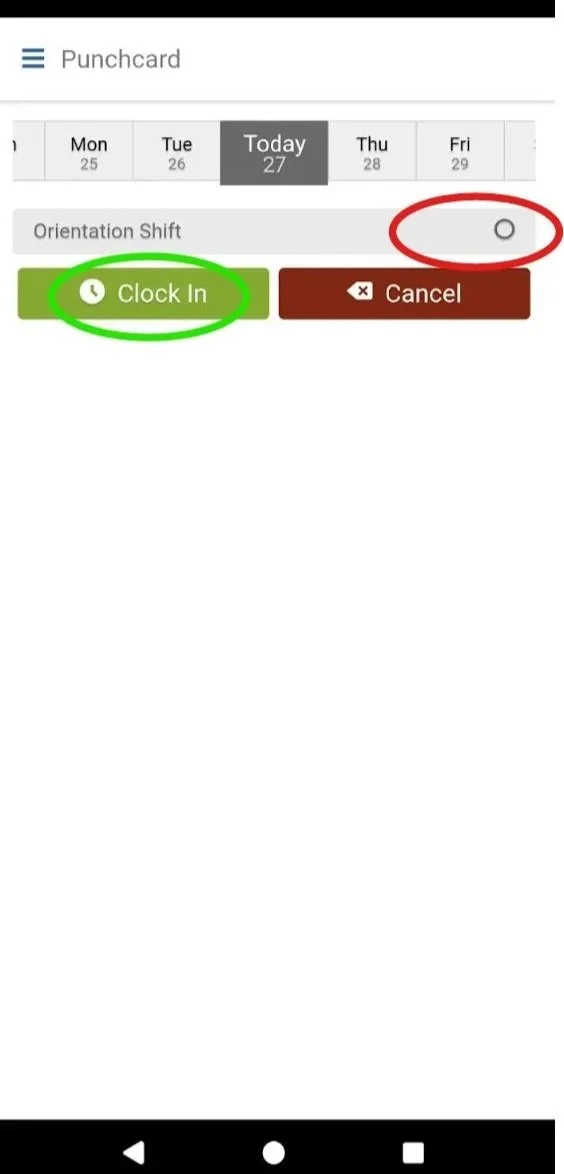
Step 6: Select “Orientation Shift” (red circle) and then select the green “Clock In” button (green circle)
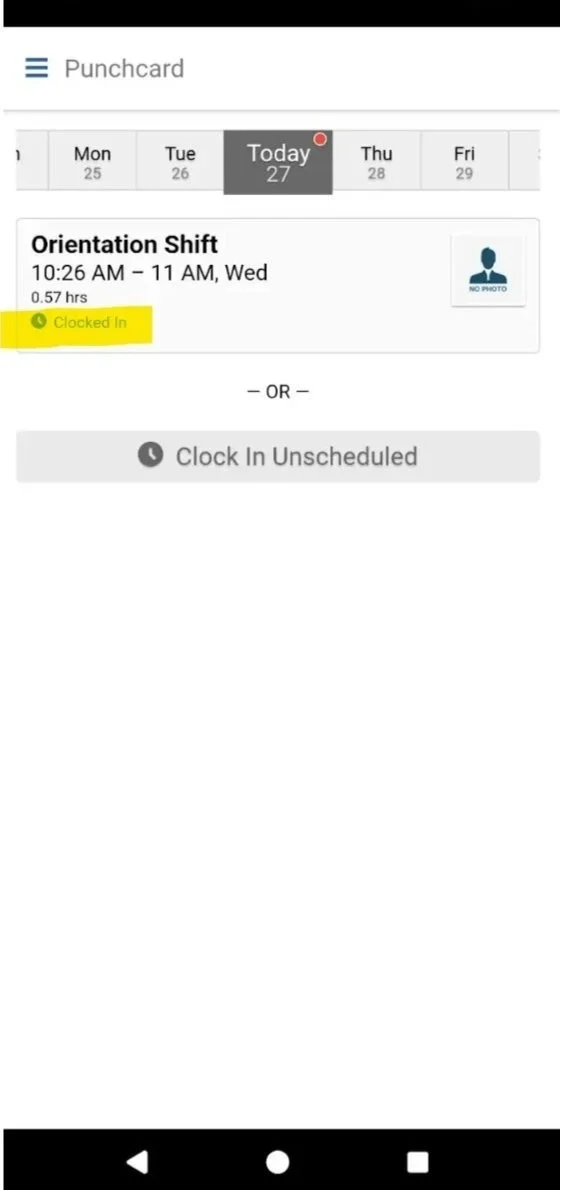
Step 7: Verify that you have clocked in and your orientation has started when you see this view with your clock in time (yellow)
Part 1: New Employee Welcome Guide & Service Manual and Acknowledgment (estimated 30-45 minutes)
Step 1: CLICK HERE to open the New Employee Welcome & Service Manual in a new tab. If the link is not working, please open a new tab or window and go to https://www.adaleyinc.com/dspmanual
Step 2: Read all of the information in the New Employee Welcome & Service Manual.
Step 3: Submit the acknowledgment form at the bottom of the page with all sections checked. You will receive a copy of the Welcome & Service Manual along with your acknowledgement in your email.
Part 2: California Sexual Harassment Prevention Training (estimated 75-90 minutes)
NOTE: If you are currently an employee of another California employer, you may have already completed the mandatory California Sexual Harassment Prevention Training within the last year. If this is the case, you may email a copy of your certificate to contact@adaleyinc.com or text a copy to (510) 800-6696 and skip down to Part 3: Complete E-Verify.
Otherwise, please continue with step 1 and complete this Sexual Harassment Prevention training.
Step 1: CLICK HERE to begin the mandatory 1 hour training for California Sexual Harassment Training provided by the Civil Rights Department of the State of California
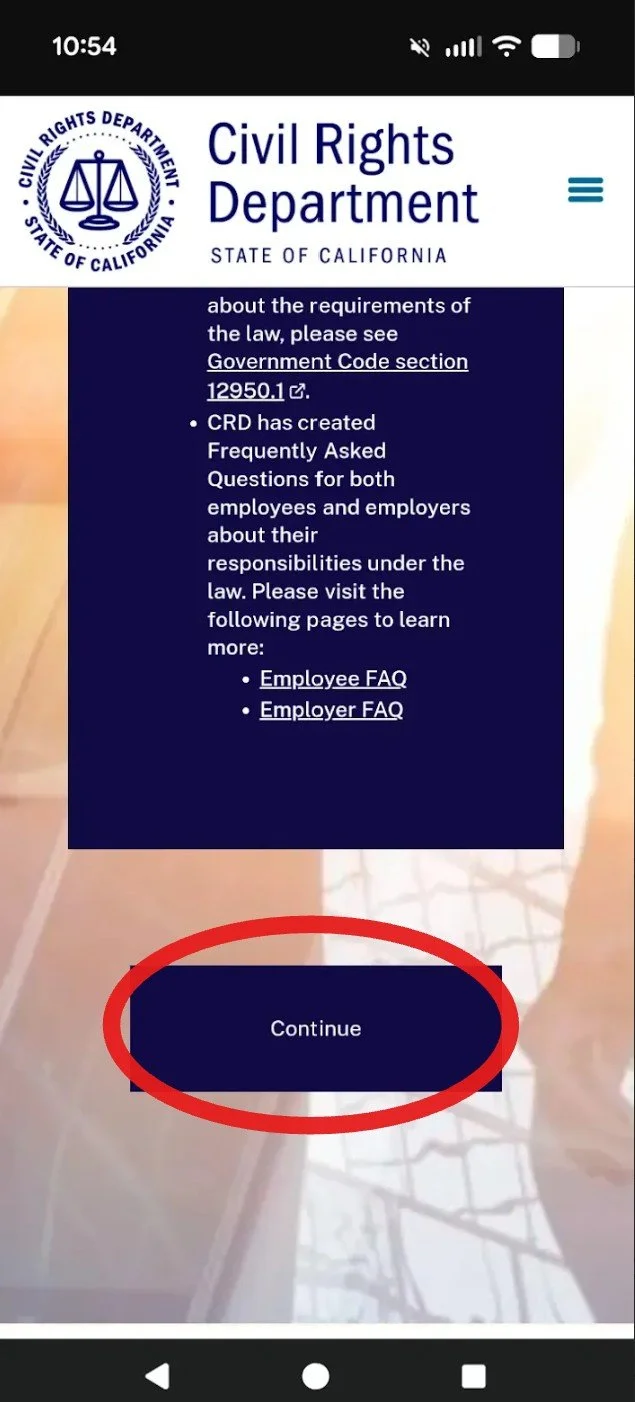
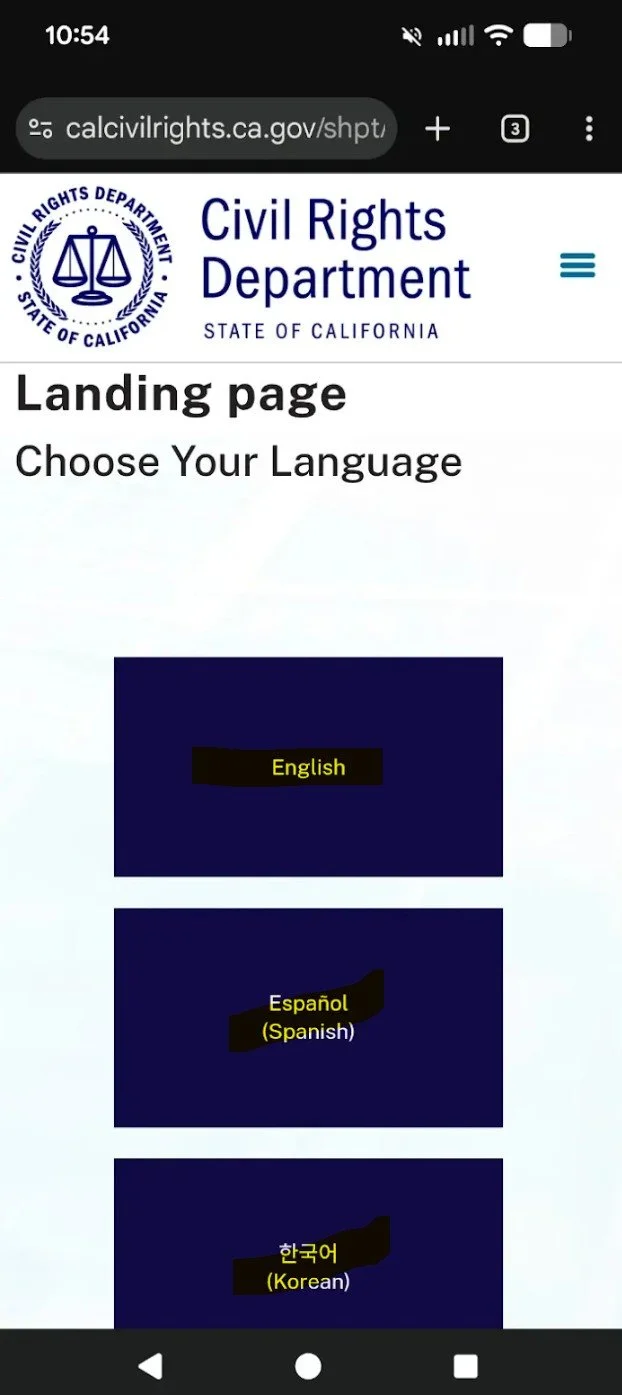
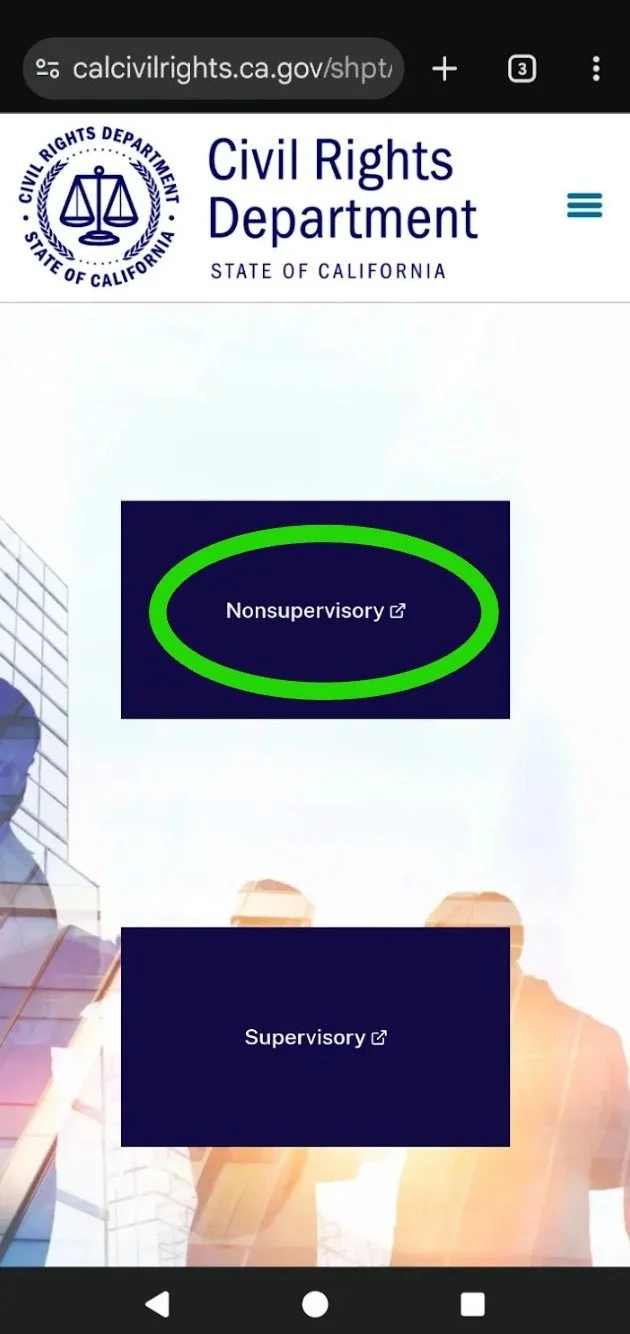
Step 2: Review the introductory page, select “continue” (red circle), select your language, and then select the top option for “non-supervisory” (green circle)
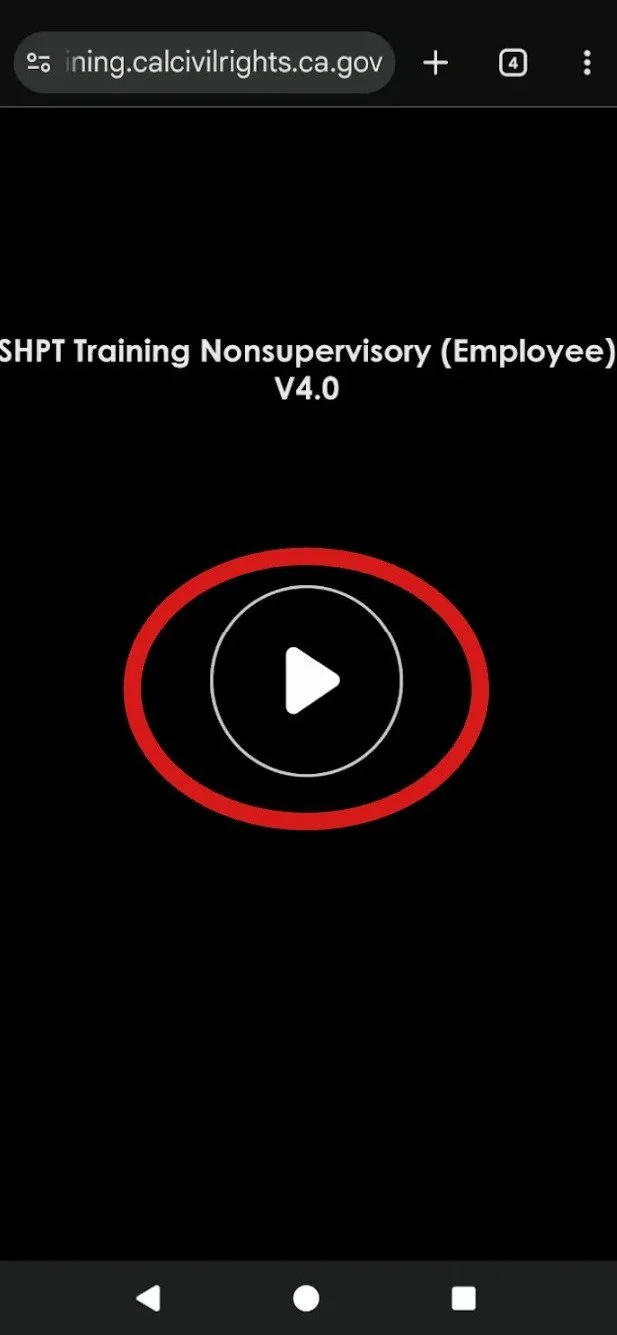
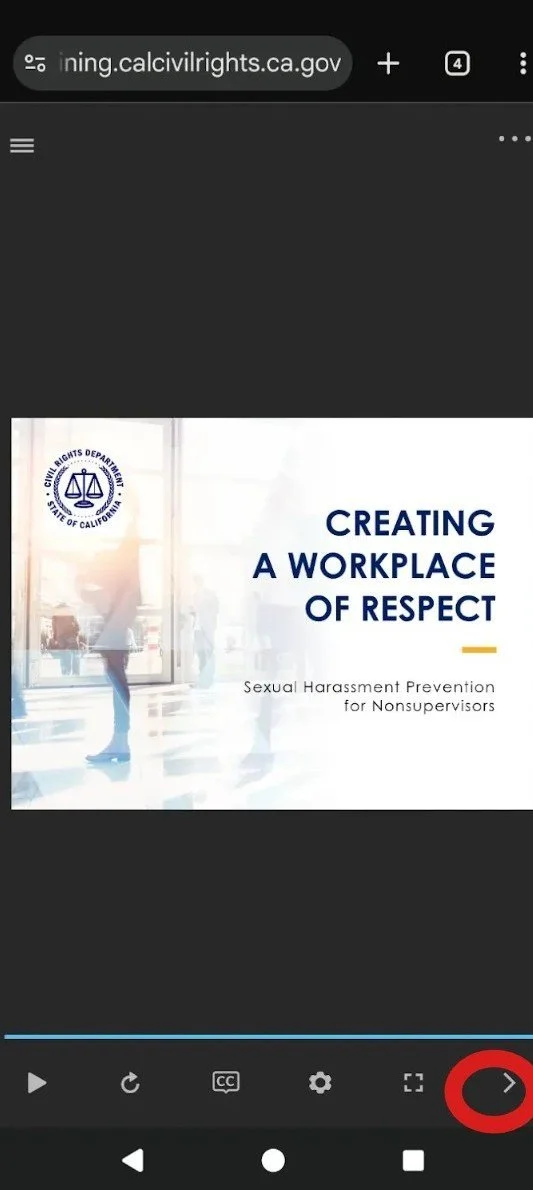
Step 3: A new tab will open with a video presentation, click the triangle play icon to start the presentation. The training comprises 136 slides and videos. As long as the browser and slide is open, the slide will automatically play. If you open a different window or turn off your screen, the video will pause. At the end of each slide, you will need to select the “next” button at the bottom right of the slide (red circle)
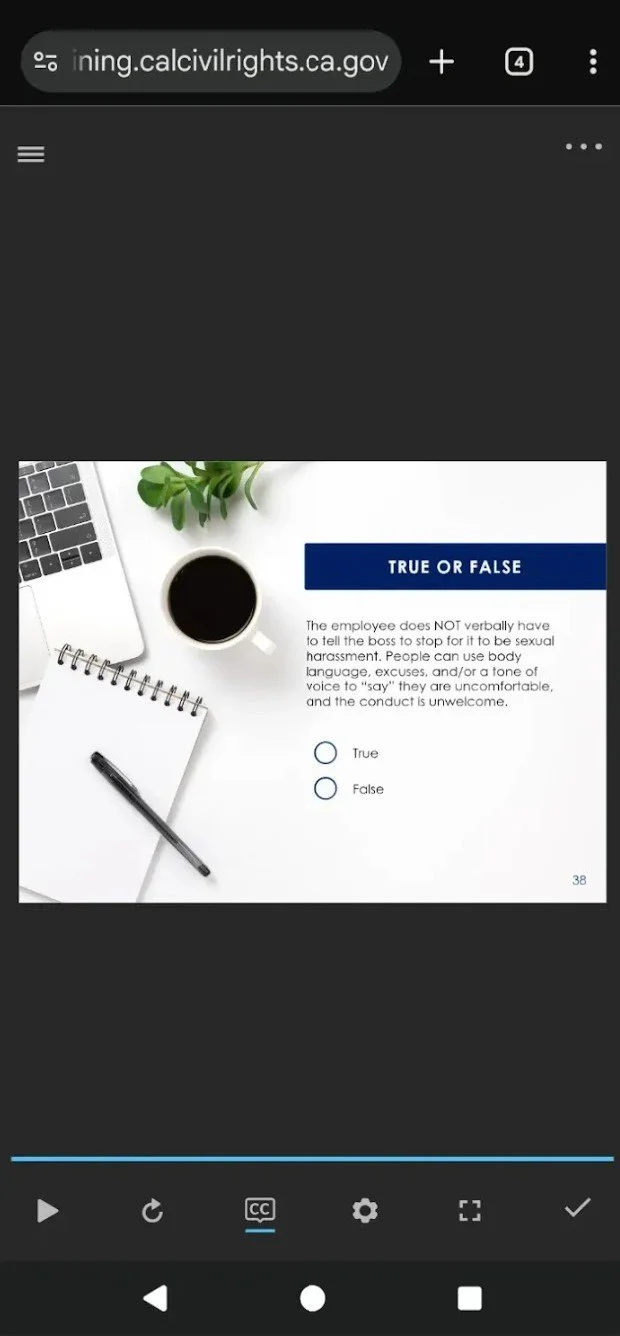
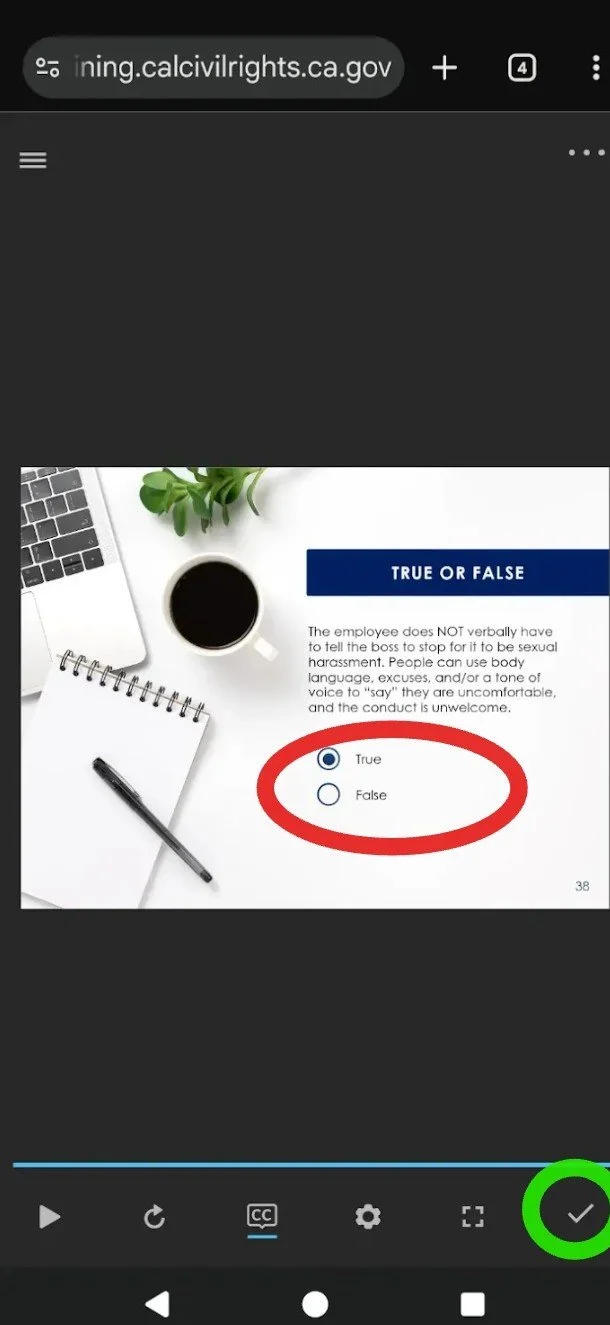
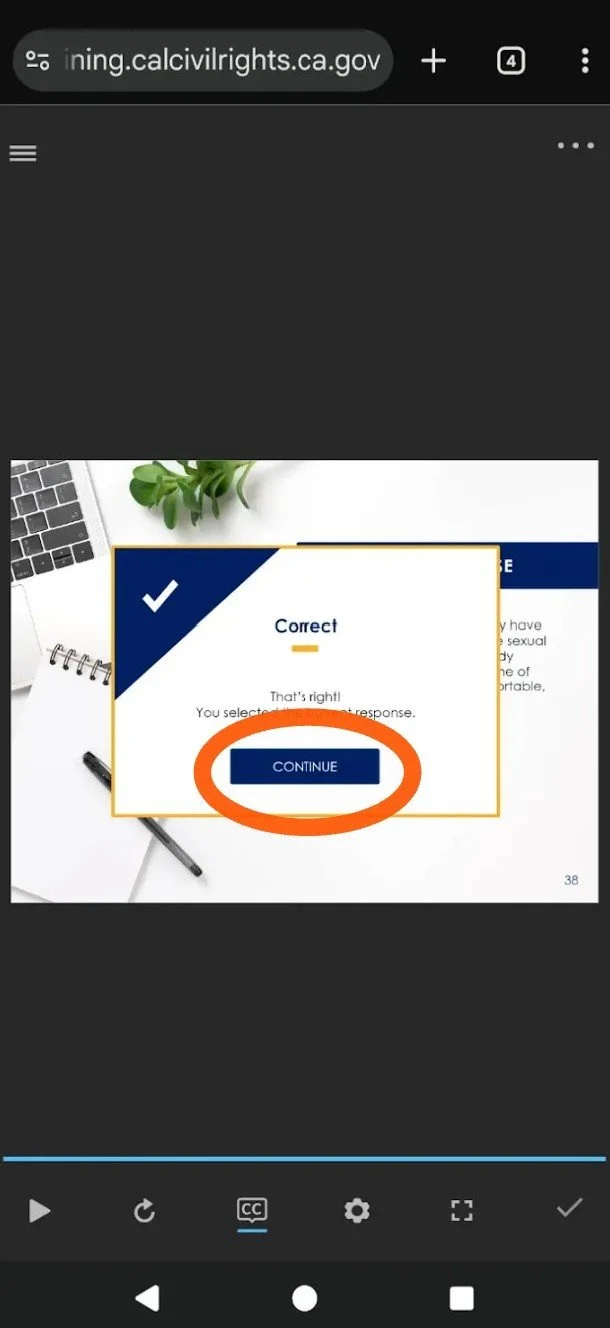
Step 4: Some of the slides will contain test questions. You will need to select the correct answer (red circle) and then click on the checkmark icon at the bottom right to check your answer (green circle). A pop-up will tell you if you are correct or if you need to try again, click continue (orange circle).
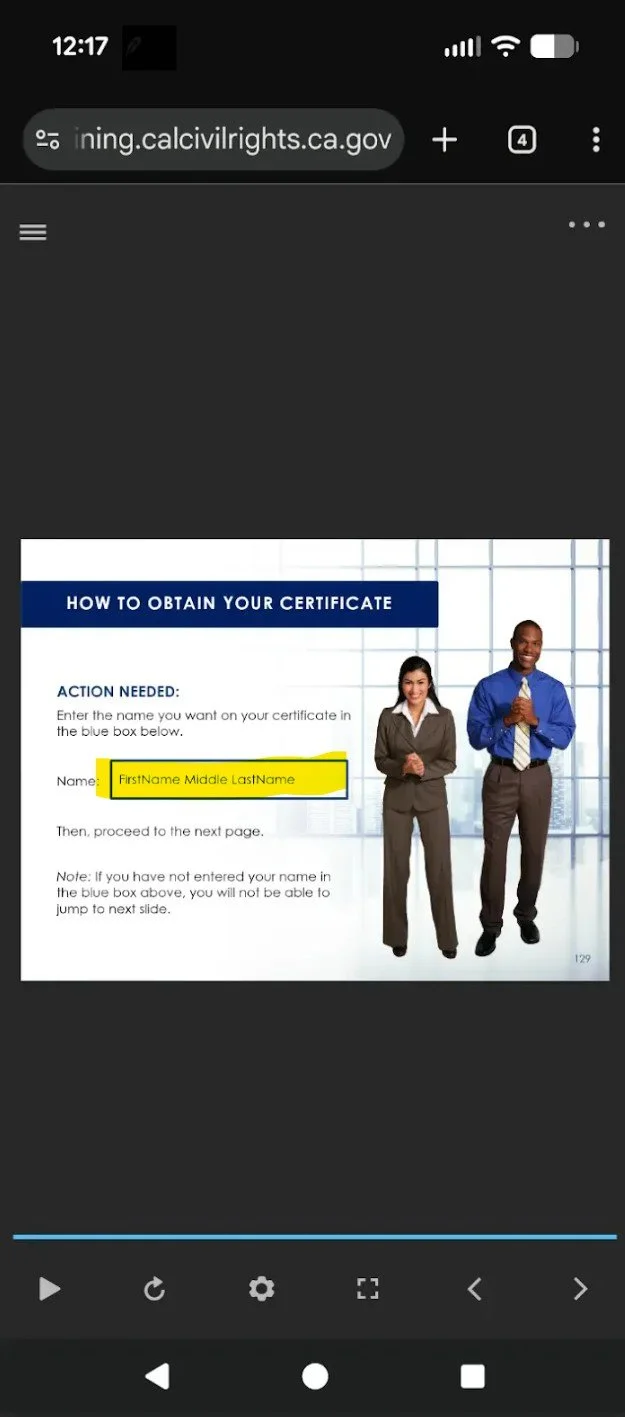
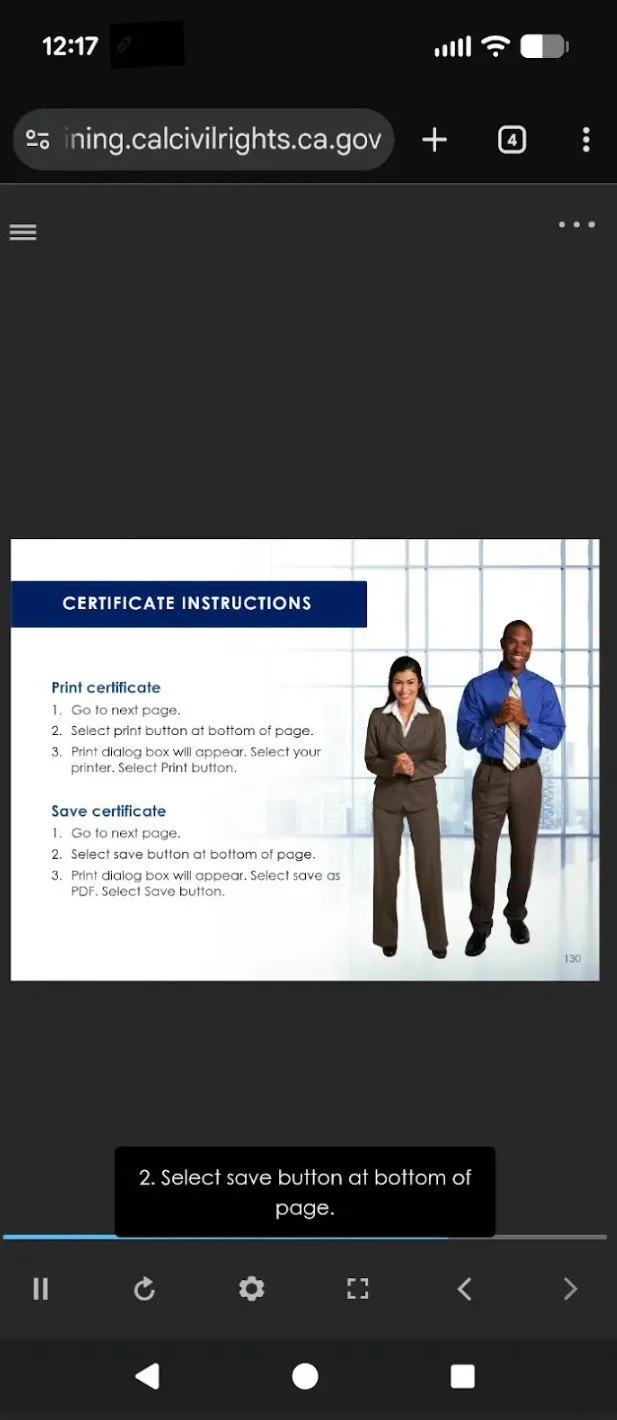
Step 5: At the end of your training, you will receive instructions on how to print and save your certificate. Enter your name in the box provided (yellow). Print or save your certificate—the slides provide steps to print, save, take a photo or take a screenshot. Choose any method you would like, as long the certificate is legible and we can clearly see your full name and the date of completion. On the certificate screen, verify that your name is spelled correctly (green).
Step 6: Save, print, take a photo or screenshot of your completion certificate
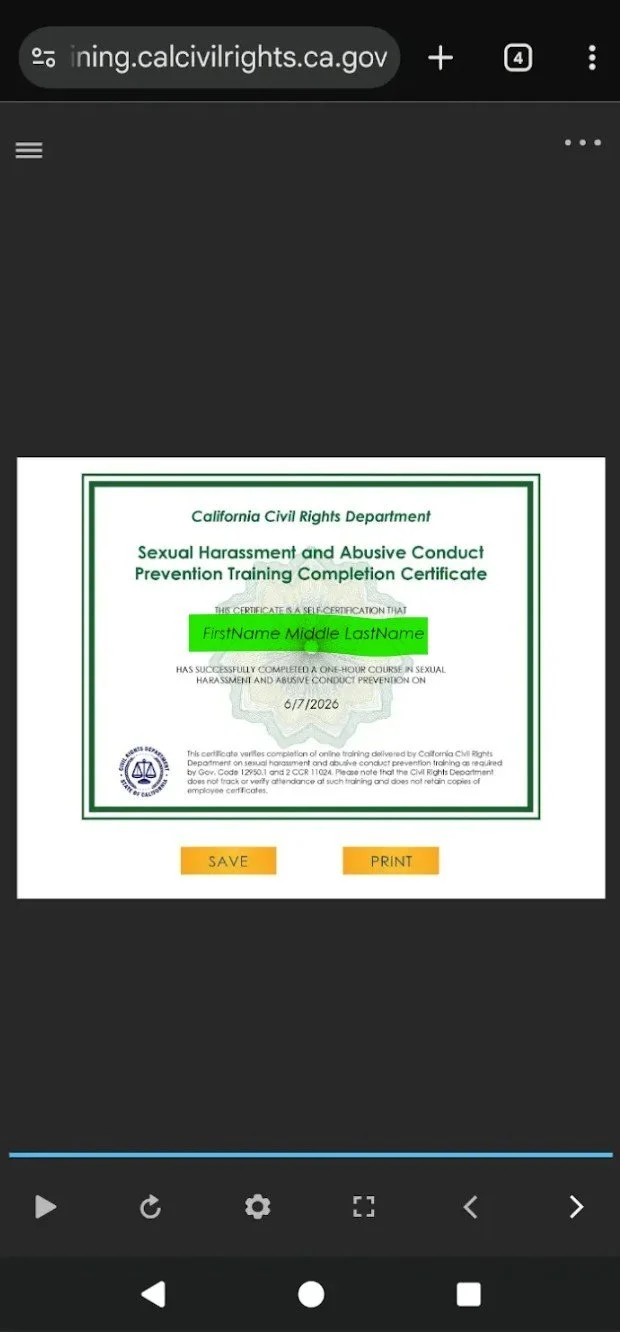
Step 7: Email your certificate to contact@adaleyinc.com or text your certificate to (510) 800-6696
Part 3: Complete E-Verify (15-30 minutes)
Step 1: Follow the instructions you received in your email from @dhs.gov to complete your e-verify form online. If you are experiencing any issues completing this form, please email or text us to let us know and immediately proceed to the final part of orientation (clocking out).
Final Part: Clock out (estimated 5-10 minutes)
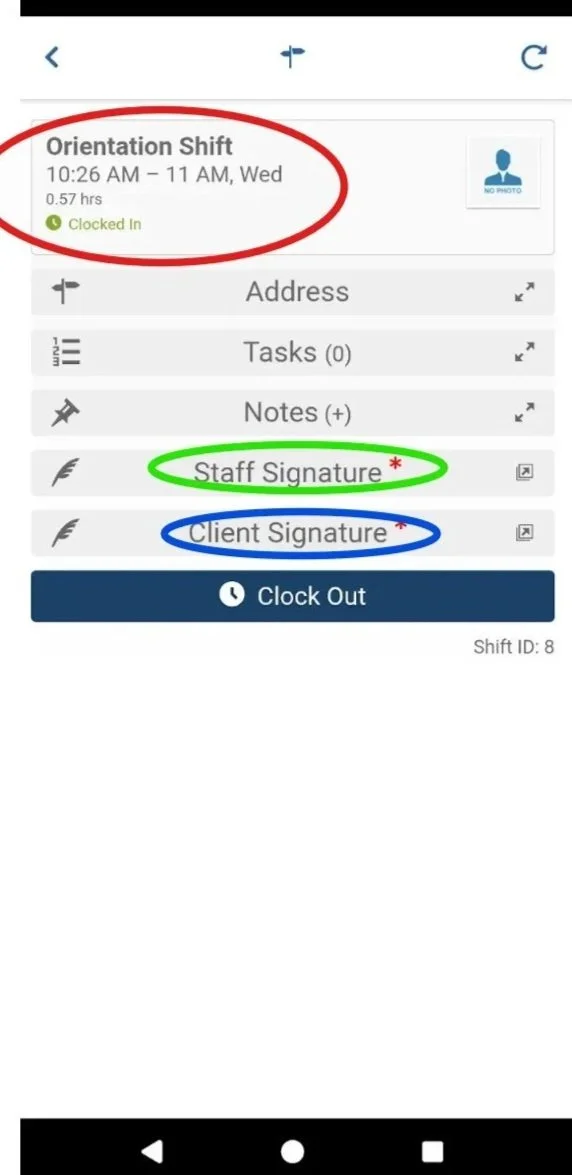
Step 1: Go back to your Aaniie (smartcare) app, and click on the active orientation shift (red circle) to see details of the shift including caregiver and client signatures for clock out.
Step 2: Click on “Staff Signature” (green circle) and sign off on the shift and click “save”.
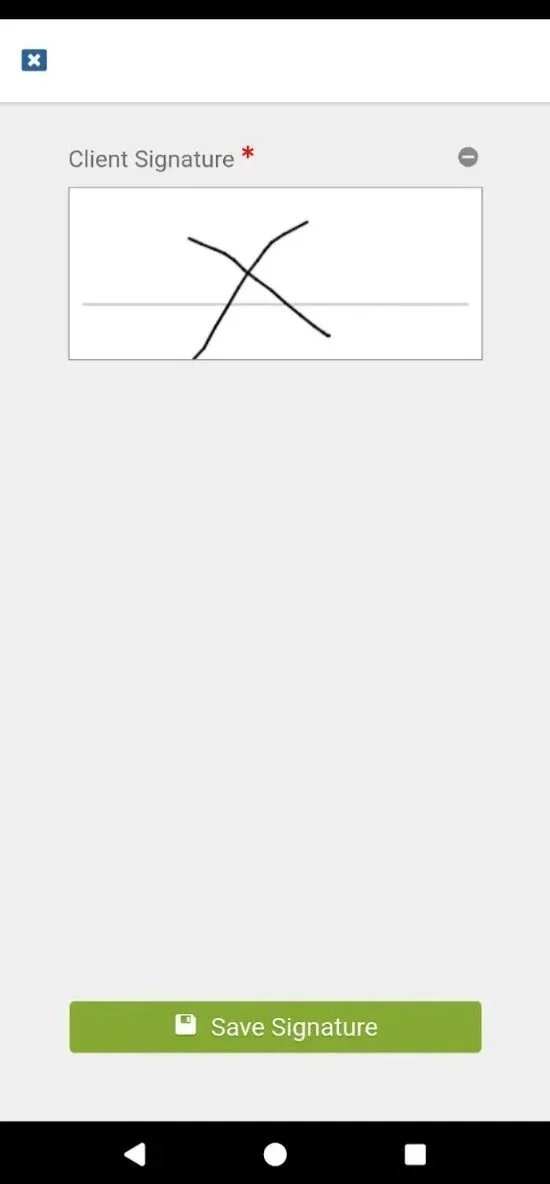
Step 3: For this orientation shift only*: Click on client signature (blue circle) and draw an “X” on the signature and click “save”.
Step 4: Finally click the dark blue “Clock Out” button at the very bottom.
*For all client shifts, only authorized client representatives are may sign under "Client Signature”
Congratulations on completing your new employee orientation and your first shift!
You can now coordinate with your client family for caregiving and clock in to work client-approved shifts. If you have any questions, please feel free to contact us directly via text message or call to (510) 800-6696 or an email to contact@adaleyinc.com